One day it came to pass that I learned about the great help on MatLab, which looks like this online

> help NAME_OF_FUNCTION_YOU_ARE_INTERESTED_IN
Of course you will say the actual name of that function, not NAME_OF_FUNCTION_YOU_ARE_INTERESTED_IN
for example, my personal favorite, the kruskal-wallis test, which can be used with non-normal distributions to ask the question "are these samples from the same distribution?" (or distributions with equal medians...)

In short, MatLab does have statistics! And this is great when, like we have been working on, we have massive files to simulate data that is a pain in the ba-donk-a-donk to export. Why export to R to run many rank-sum tests and KS tests when you could do this in MatLab?

Now best,what if you've got a test that you need, but egads, it's not already in MatLab? For example, for a while I was thinking I needed to use Royston's test for multivariate normality. It later occurred to me that in my particular situation I could use the KS test, but as you can probably guess, Royston's test isn't one of the tests commonly found in MatLab. NO FEAR.
Smart people out there exist who have written scripts to do this, JUST FOR MATLAB. Simply "google" the test you want and "MatLab" and you'll probably find it. I found Royston's test here.
Now to use this test you need to be able to "call it" in MatLab. So go ahead and save the file, a zip-file. When you extract that file, make sure you save it somewhere convenient, preferably in your matlab directory. You might have, for example a place called:
C:/ProgramFiles(x86)/MatLab
you could save your file in a New Folder named "RoystonMultivariate"
C:/ProgramFiles(x86)/MatLab/RoystonMultivariate
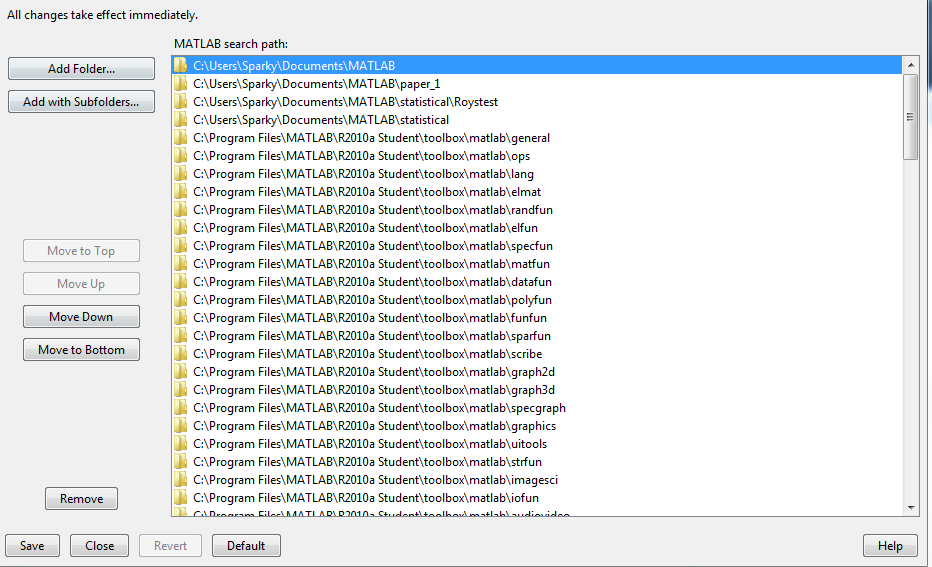
Now remember the tips I gave you in the last post about set path? If not, scroll down and review. You'll want to set that a path to the file: C:/ProgramFiles(x86)/MatLab/RoystonMultivariate that you just made. Now if you read the file documentation (which can also now be found by simply typing help roystest at the command prompt, you'll know how to set up your file to read).I think it really helps to use something like this:
[p,h,stats] = roystest(dataset);
that way you can ask for feedback like "p" (p-value), "h" (hypothesis, accept or reject) and "stats" (detailed read out).
Well, that's it for today.